Using Models from MetaAi
Unfortunately, due to MetaAi’s licencing terms you need both a Huggingface account and an API key to be able to download model checkpoints for use with ml-toolkit. Furthermore they have gone out of there way to prevent automation.
Thus if you attempt to build/use any of the models tagged MetaAi. that is any of the following:
eqV2-L-DeNS
eqV2-M-DeNS
eqV2-S-DeNS
eqV2-S
eSEN-30M-MP
eSEN-30M-OAM
eqV2-S-OAM
eqV2-M-OAM
eqV2_M
eqV2-L-OAM
eSEN-30M-OMat
eqV2-S-OMat
eqV2-M-OMat
eqV2-L-OMat
omat24
uma-s-1
uma-s-1p1
uma-m-1p1
uma
you will likely be greeted with an error similar to the following:
********************************************************************************
************************** Loading Model Config Files***************************
********************************************************************************
                        All config files look good
********************************************************************************
*** You have asked for a model that requires a HuggingFace API key to build.****
**** This needs to be provided in: ${ML_TOOLKIT_HOME}/API_Keys/HF_AUTH.key  ****
************************* See the docs for more details*************************
In which case you will need to do some manual setup.
Getting a huggingface account and an API Token
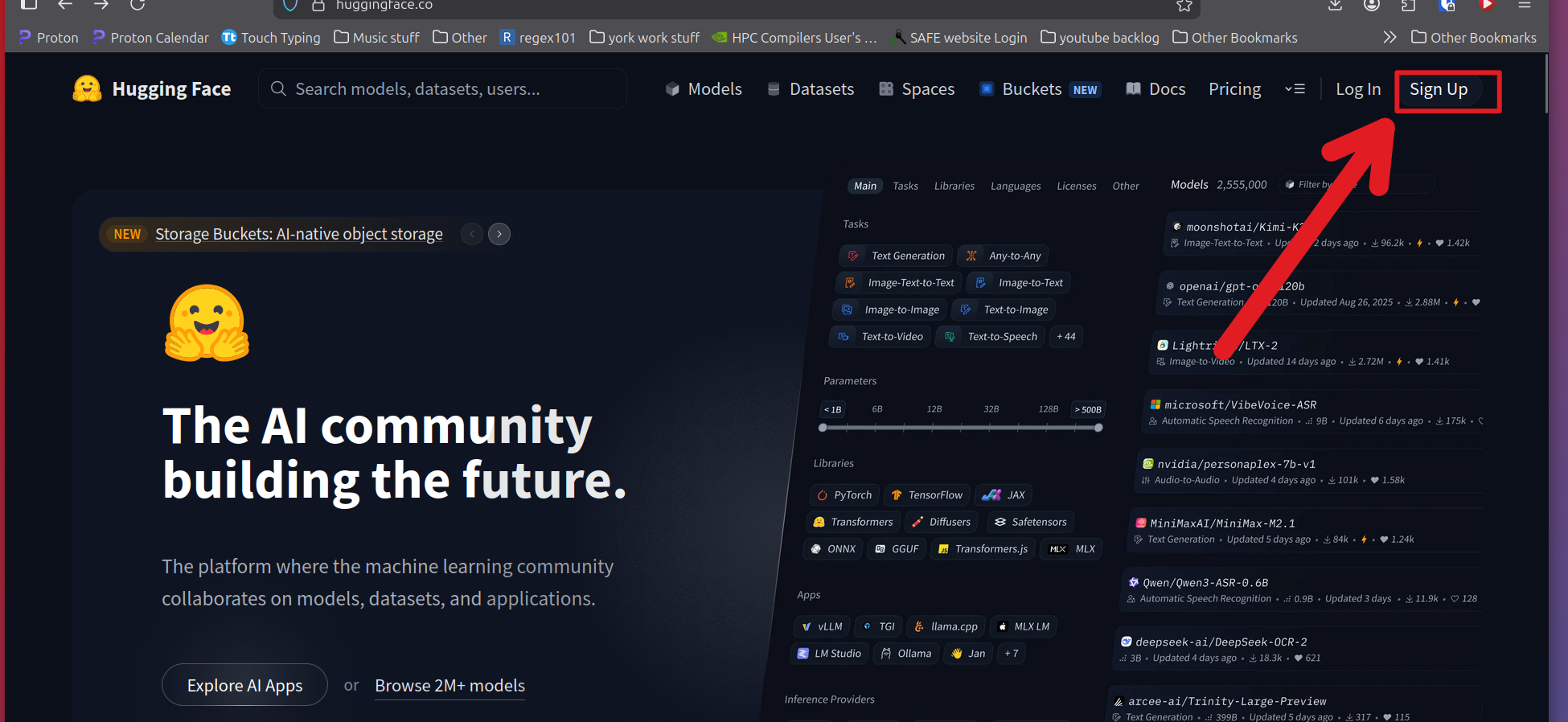
First you will need to create an account with huggingface. To do this go to the huggingface website and click on the button that says signup.
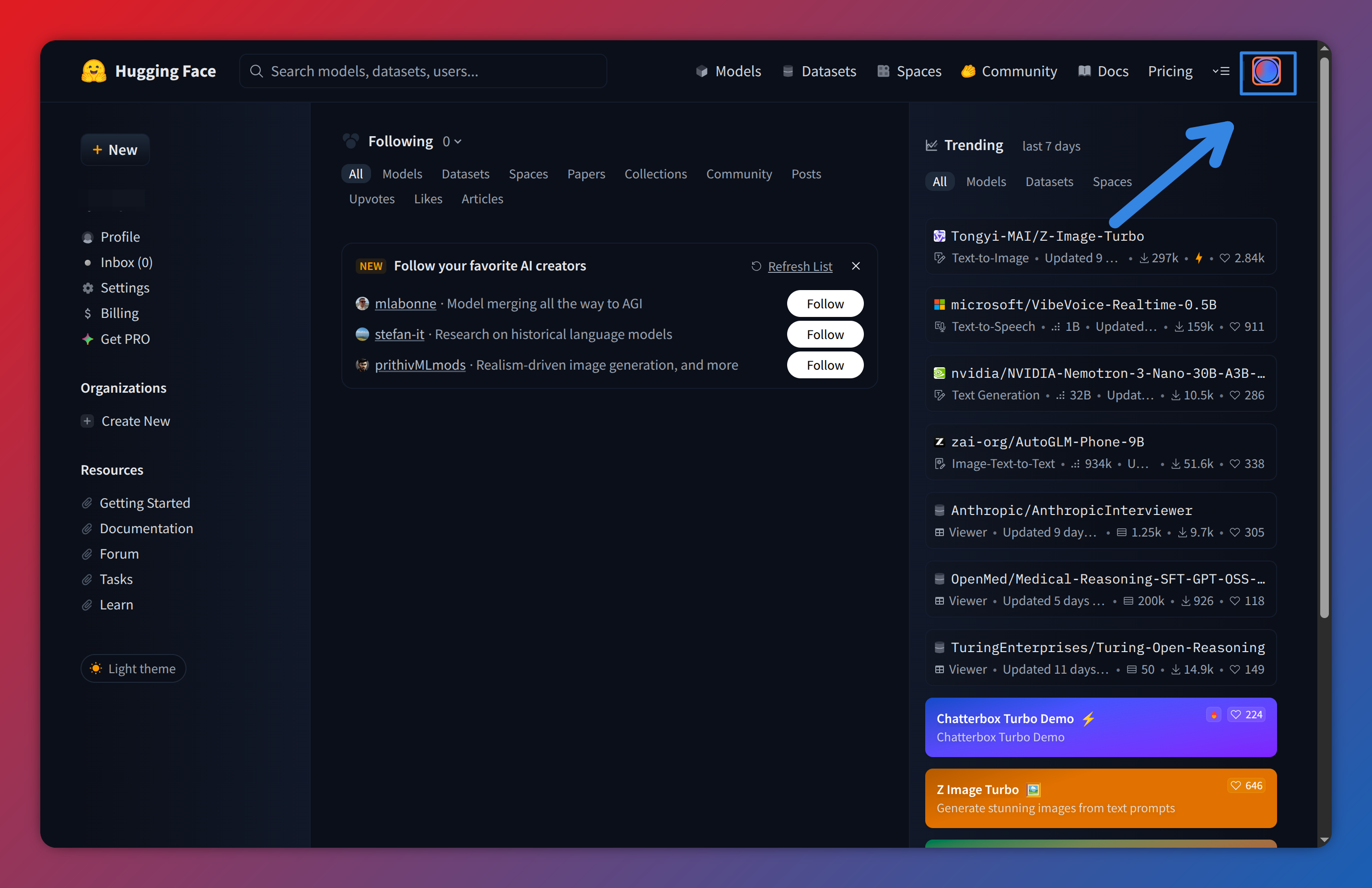
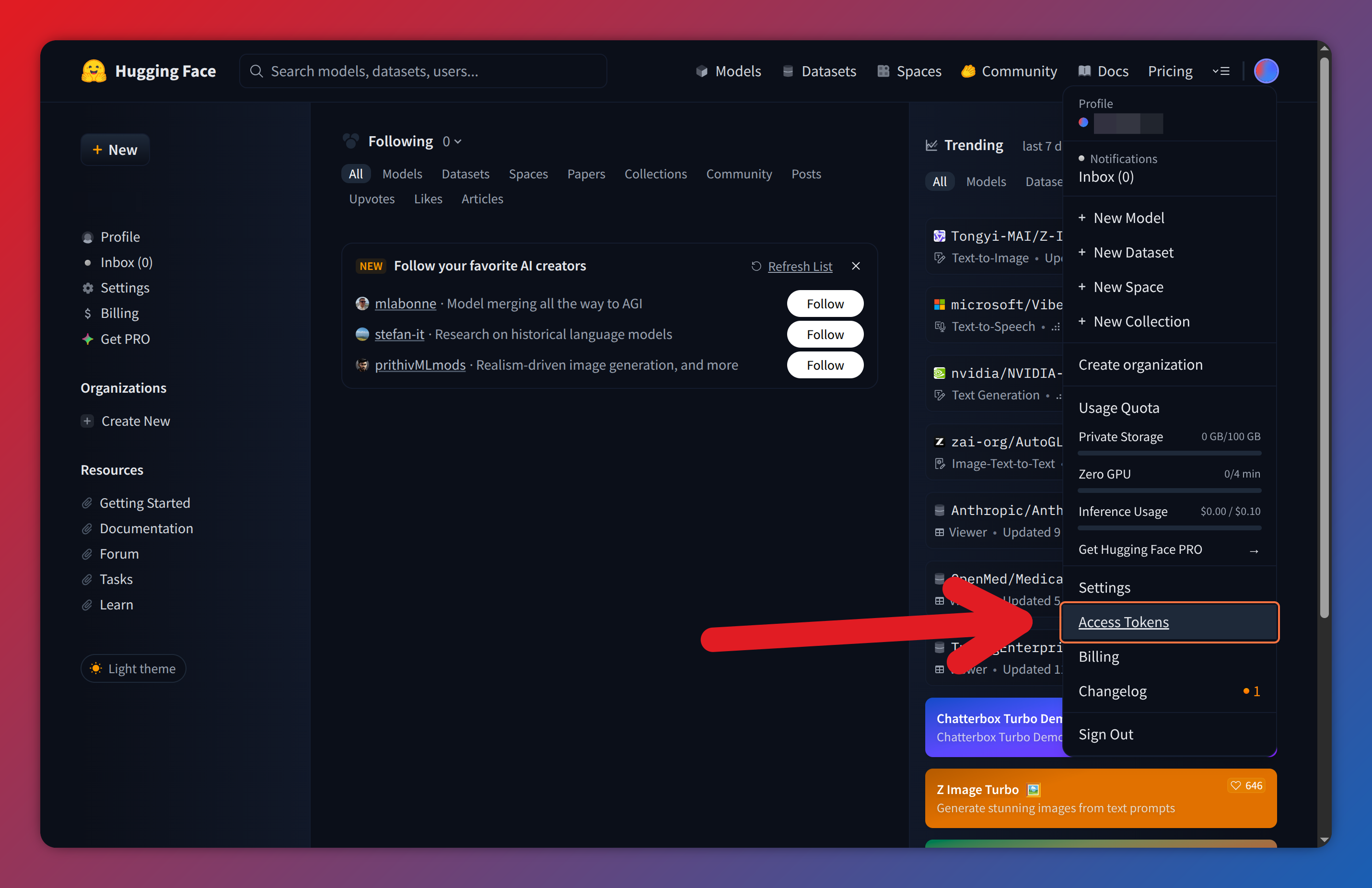
Next click on the image in the top left hand corner and select “access tokens” from the list that appears.
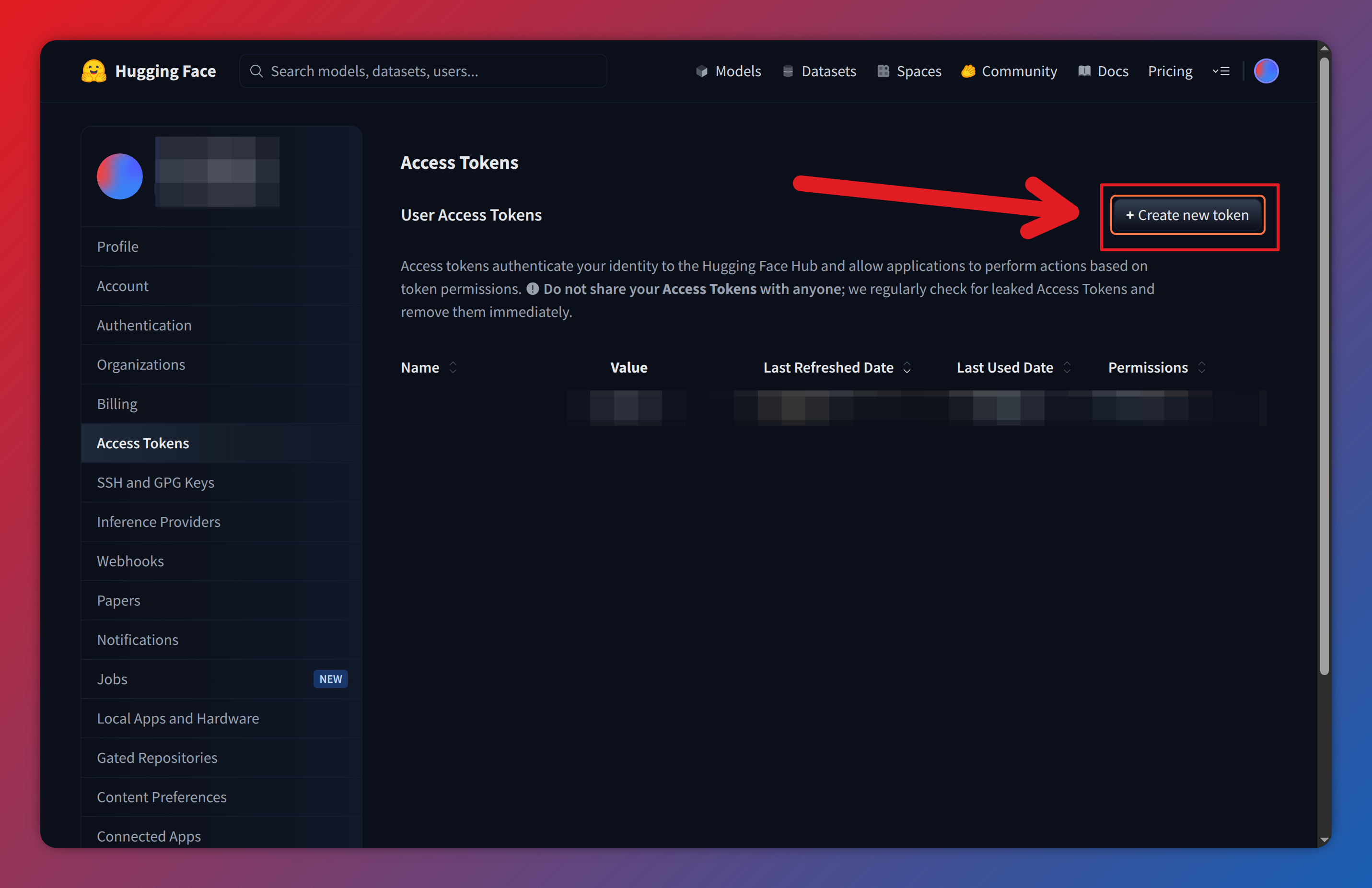
Next click on Click on Create new token. Then give your token a name, this can be anything you like.
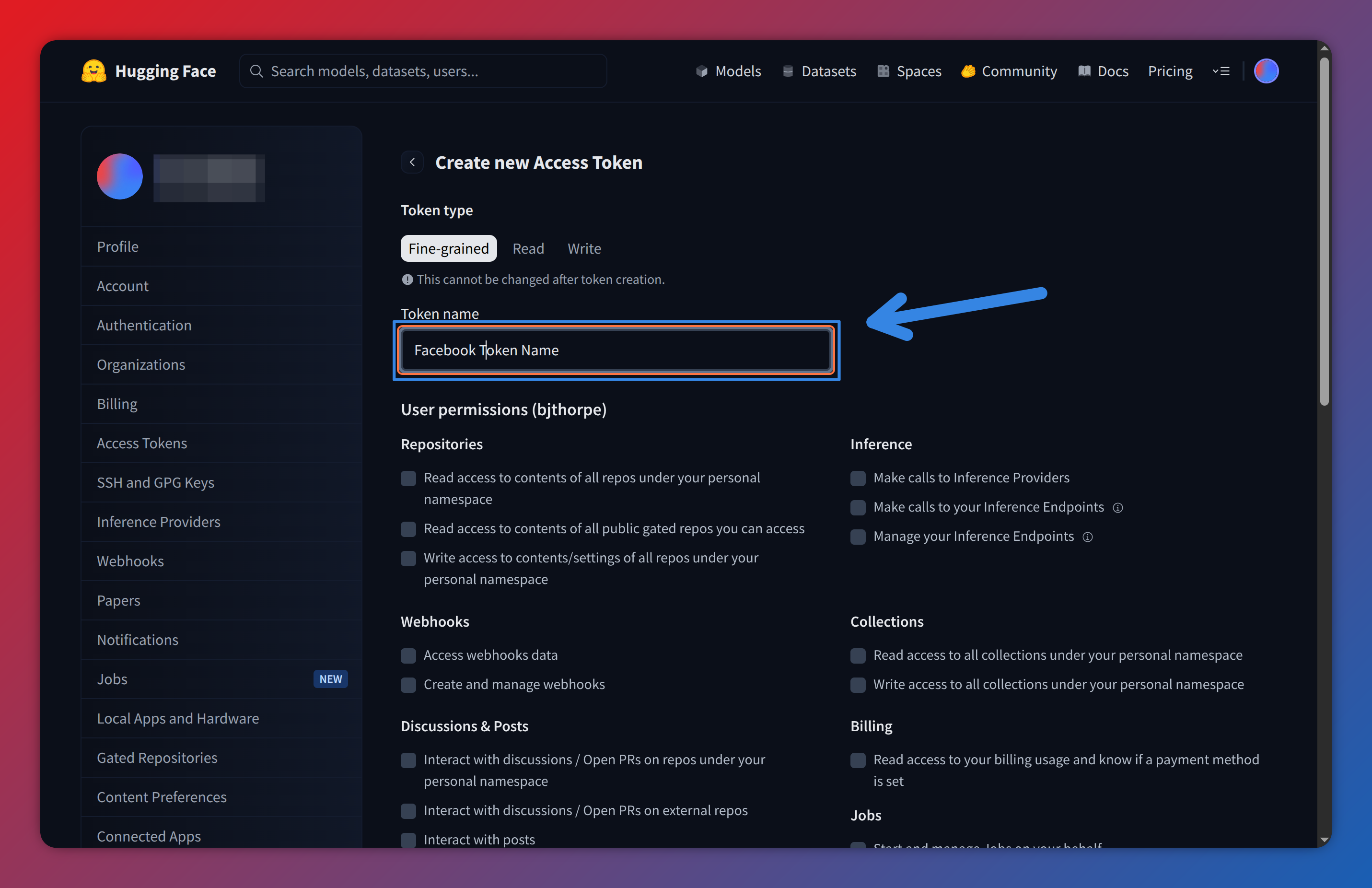
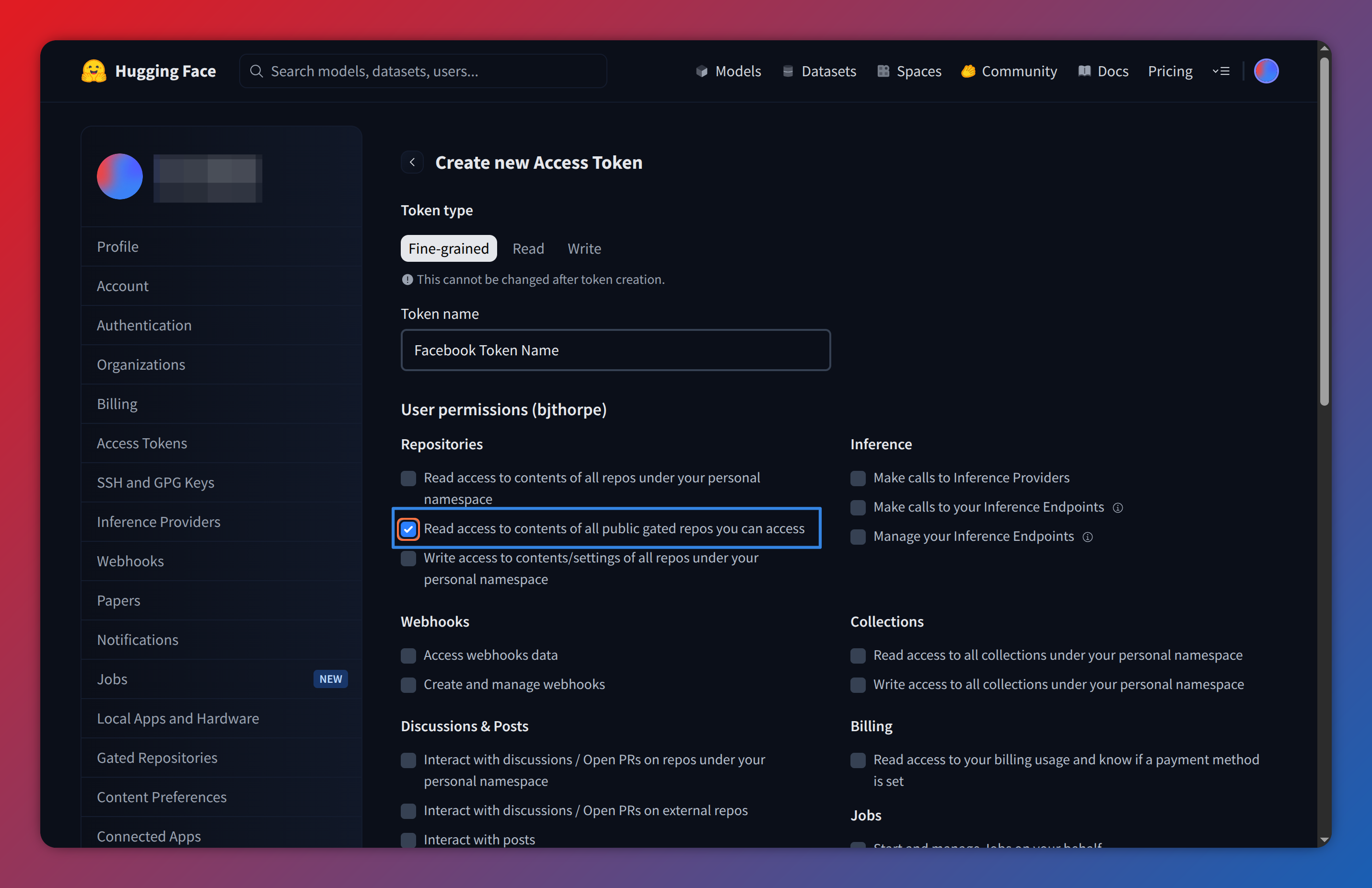
Next Check “Read access to contents of all public gated repos you can access” then scroll to the bottom and click create token.
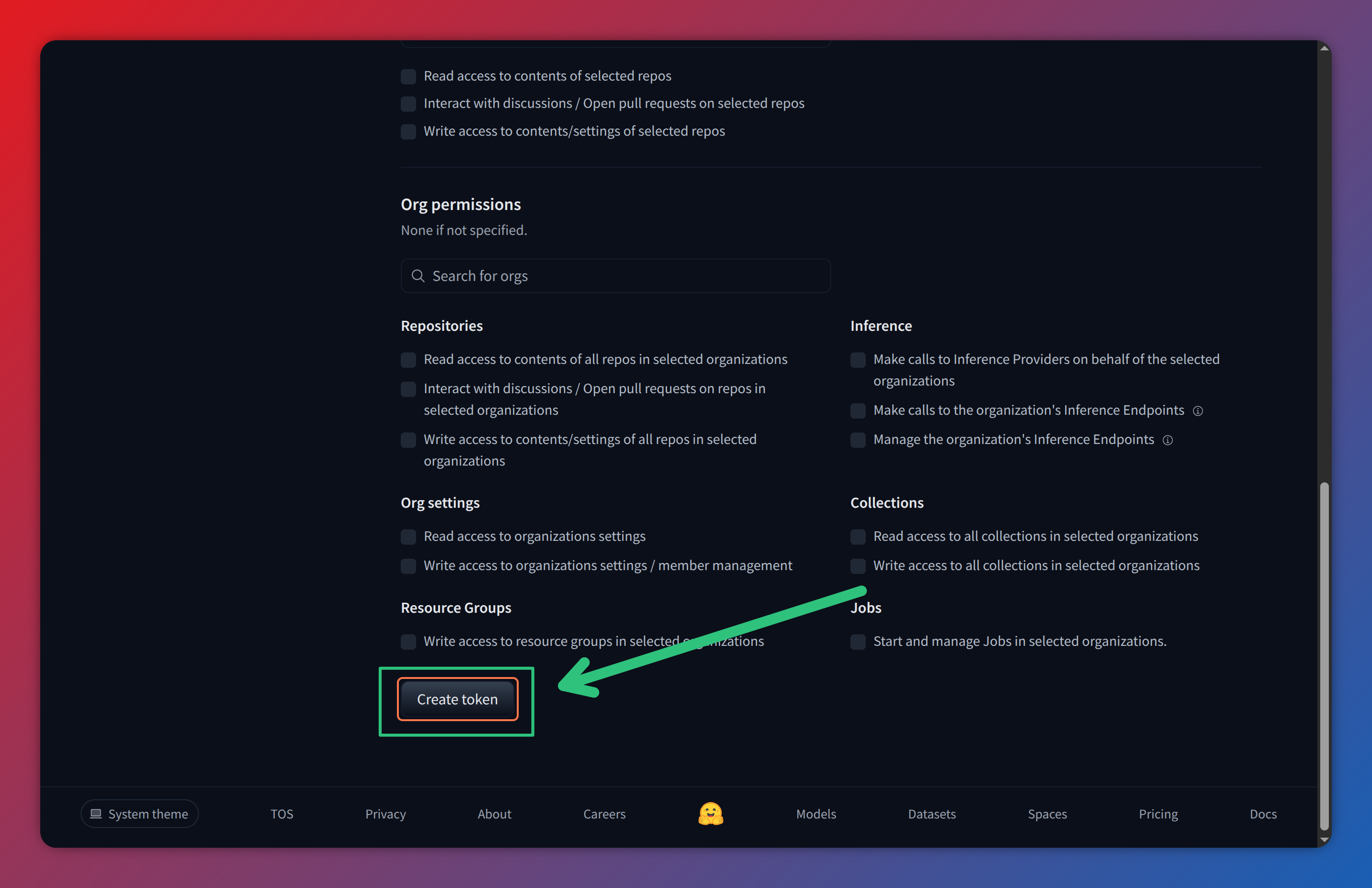
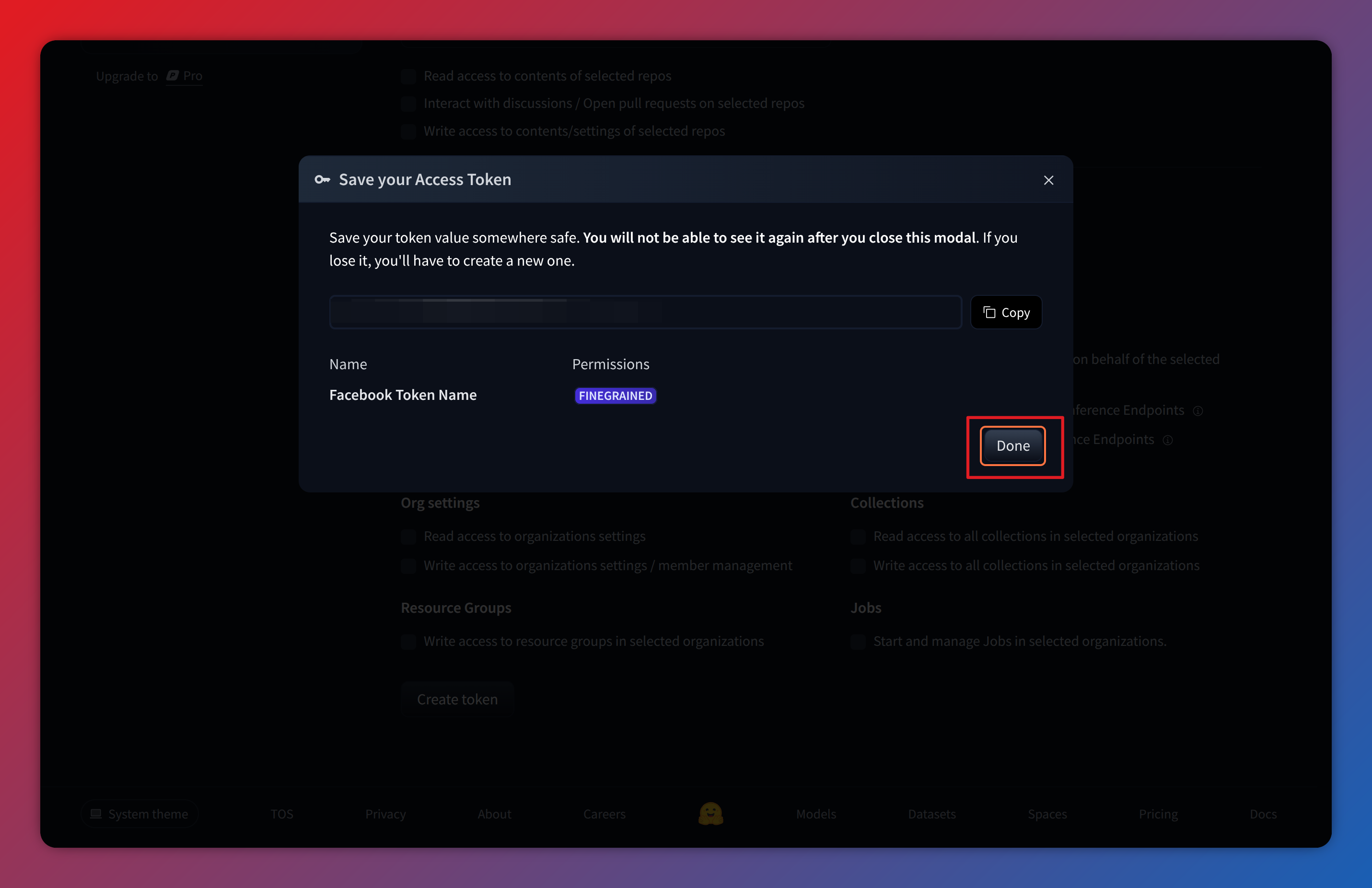
From here you should see a long string of random letters and numbers. This is your API key.
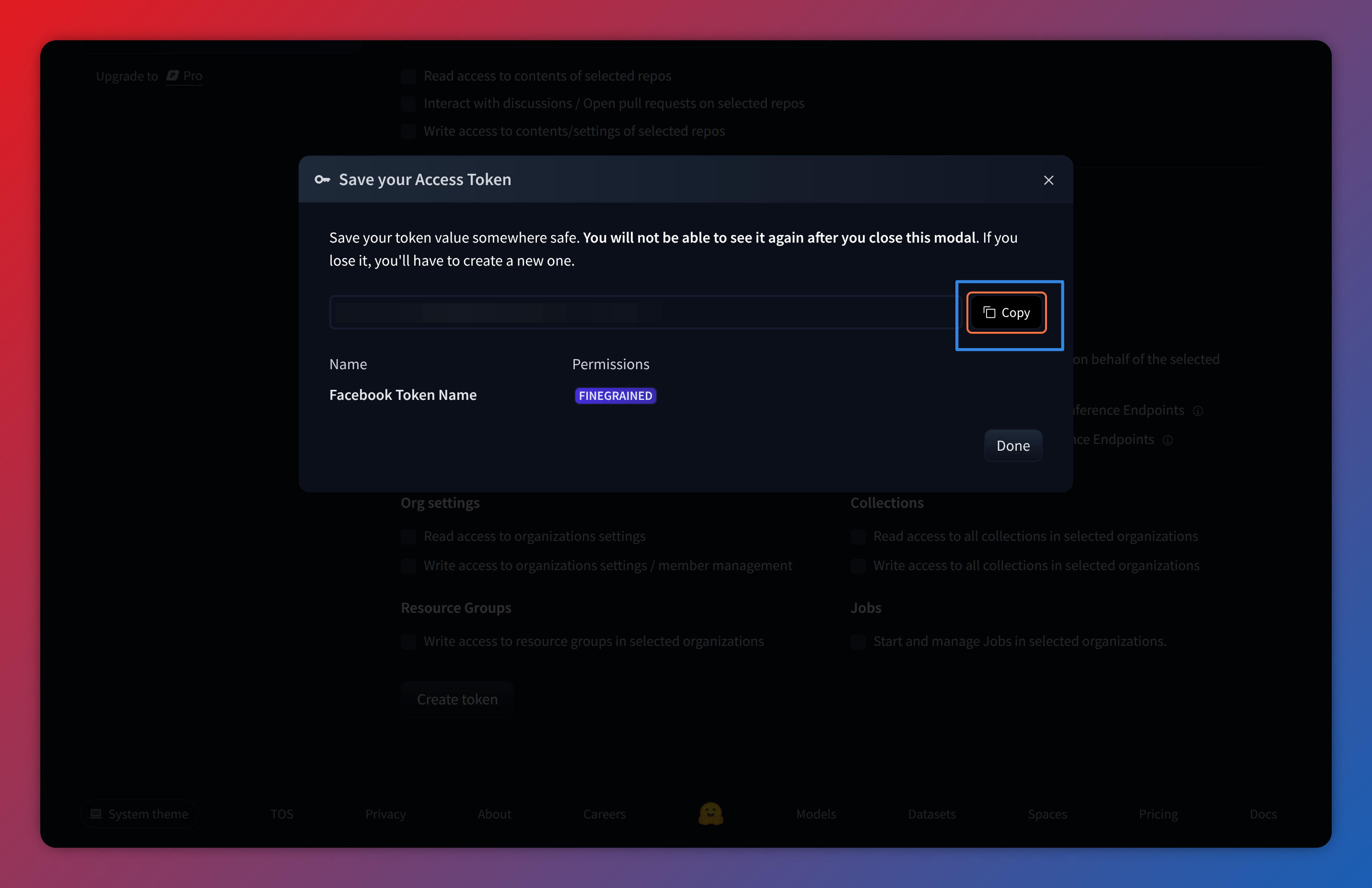
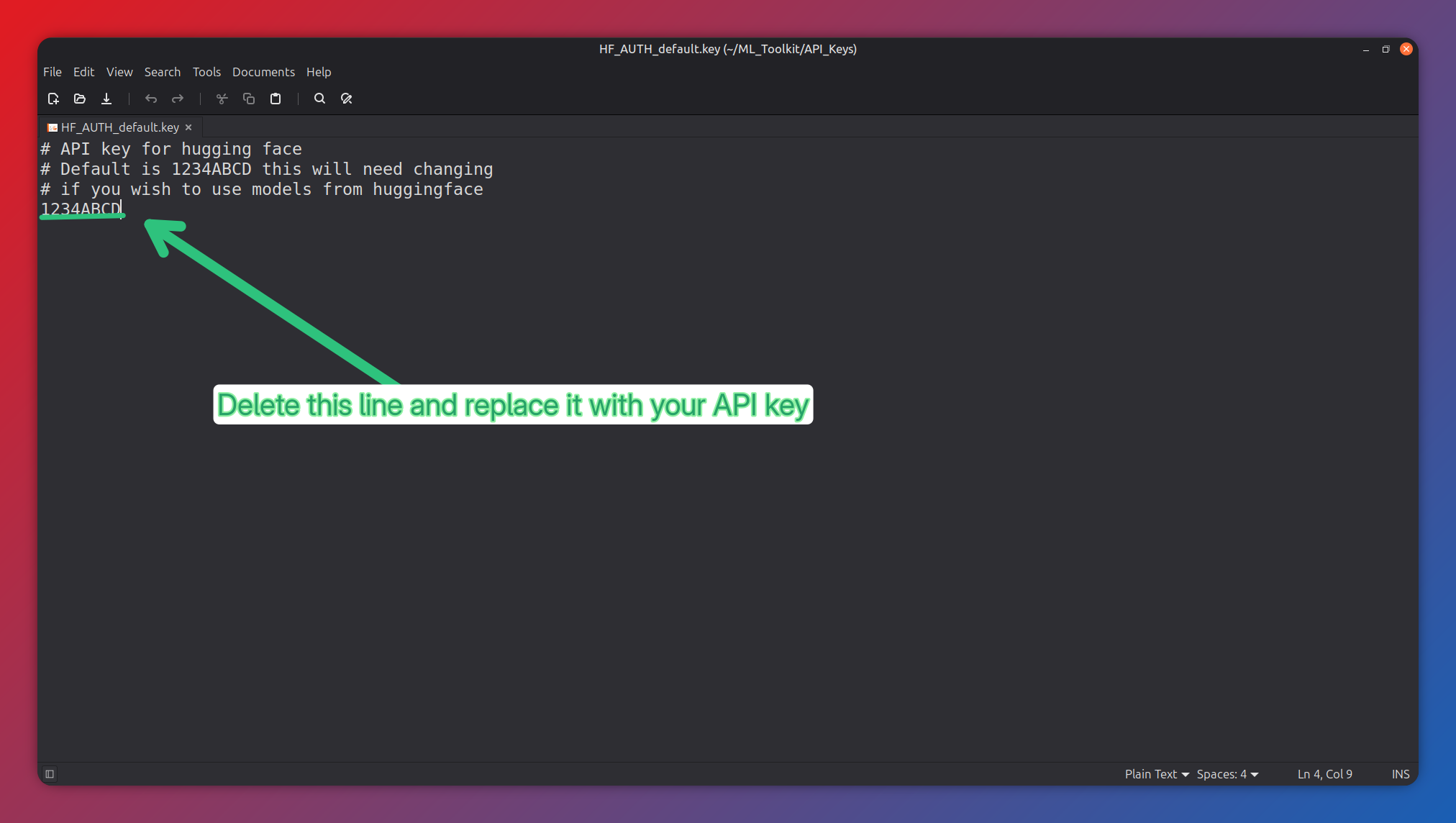
Next open the file ML_Toolkit/API_Keys/HF_AUTH.key in a text editor. Delete the last line
1234ABCD and paste in your API key. Save this file then click done on the hugging face
window.
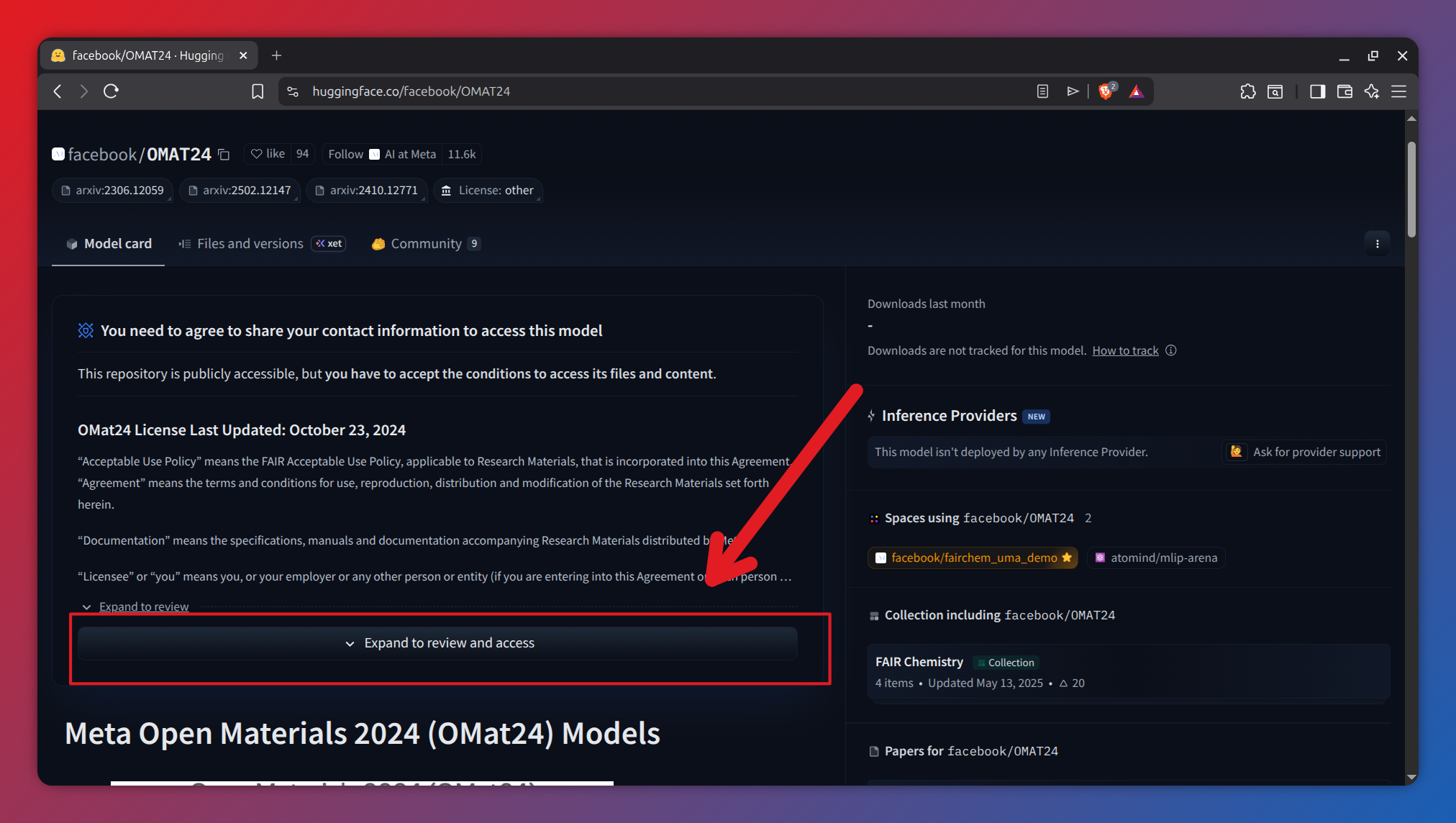
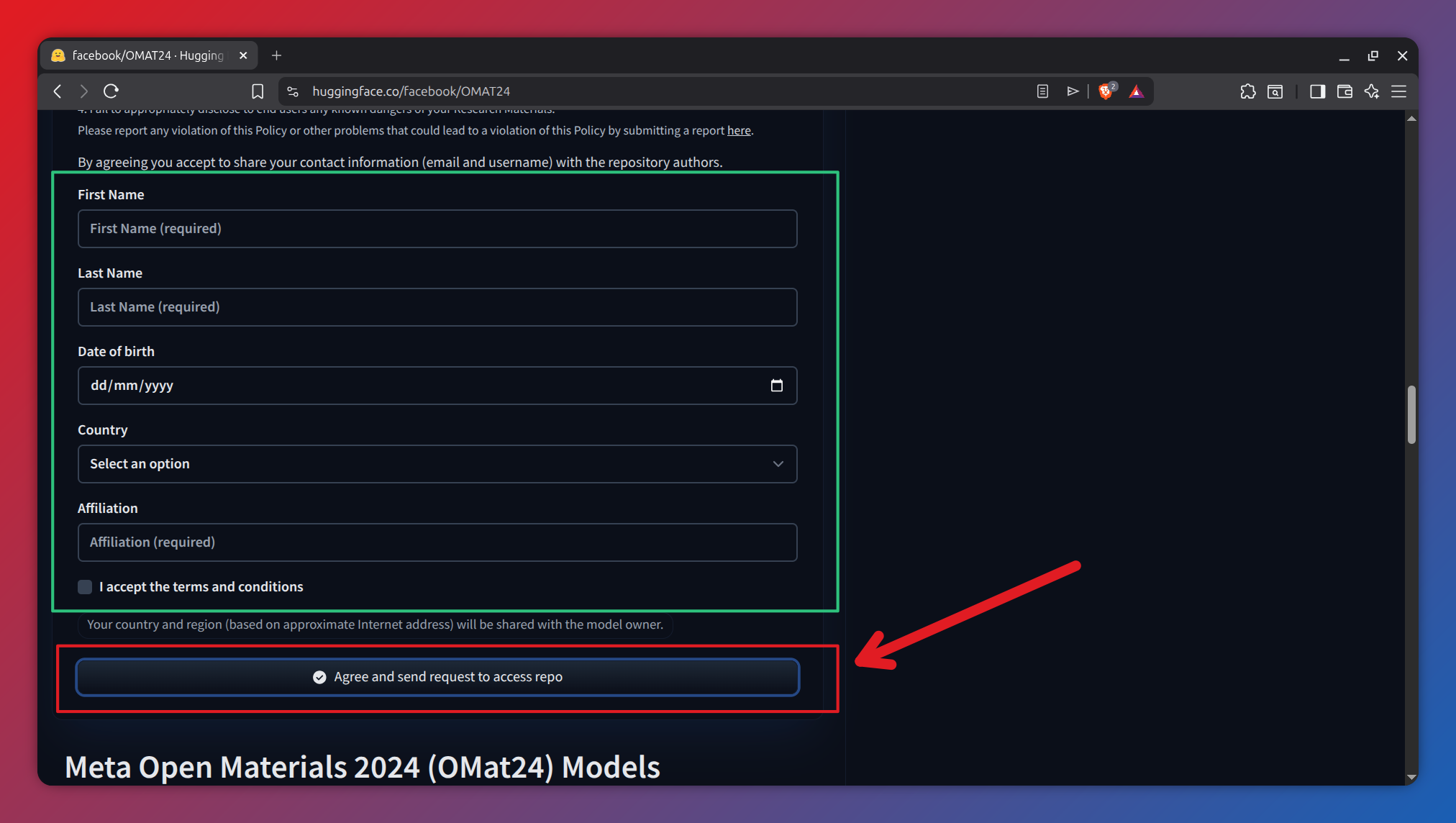
Finally you need to request access to the models themselves. There are two model families you need: OMAT24 and the universal model for atoms (UMA) you need to go to the webpage for each model family then click “Expand to review and access”. Then scroll to the bottom, fill in the form and click “agree and send request to access repo”. You then just need to wait for meta to review this and grant you access this is supposed to take up to 48 hours.
Note the screenshots here are for OMAT24 however the procedure for UMA is exactly the same.
One final note about UMA models
The models from Meta UMA are not officially a part of Matbench discovery but have been included as they are Meta’s latest models and thus may be of interest. Somewhat Annoyingly they are hybrid models i.e. each model has sub-models for performing specific tasks. As such they have a slightly different workflow to the OMAT24 models.
When you start the model you need to tell UMA what task to perform. Thus when using this model with CASTEP
you will need to add an extra cmd argument -T / --task as follows:
# change directory to where .param and .cell are located
cd /location/of/<molecule>.param
ml-toolkit start uma-s-1 --task <taskname>
castep.serial <molecule>
ml-toolkit stop uma-s-1
where <taskname> can be any of: - oc20: use this for catalysis - oc22: use this for oxide catalysis (1p2 only) - oc25: use this for (electro)catalysis (1p2 only) - omat: use this for inorganic materials - omol: use this for molecules+polymers - odac: use this for MOFs - omc: use this for molecular crystals